
Add Tag or Remove Tag.
Tags are commonly used in surveys to:
- Filter charts and tables in the Analyse tab
- Filter responses in the Response exports
- setup Tag Quotas in the Capture tab
- route respondents in your Survey Logic
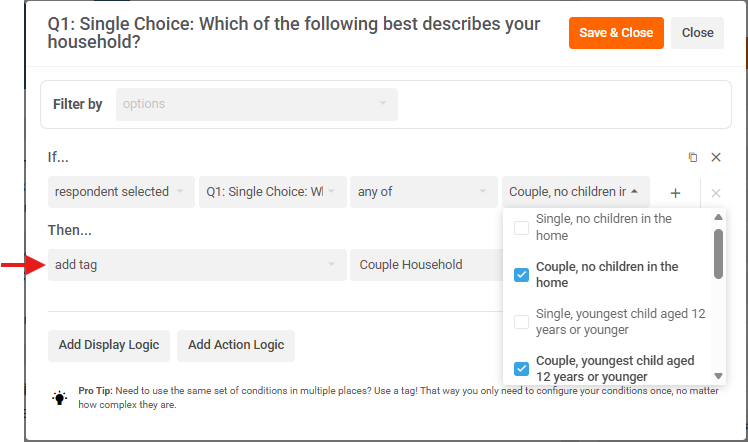
To add a tag:
- Go to your question's logic editor.
- Click Add Action Logic
- In the Then... dropdown, click 'add tag' and type in your tag
- In the If... dropdown, input your condition.
Example: if respondent select any of the 'Couple' choices at Q1, add tag for 'Couple Household'.
You can then use tags:
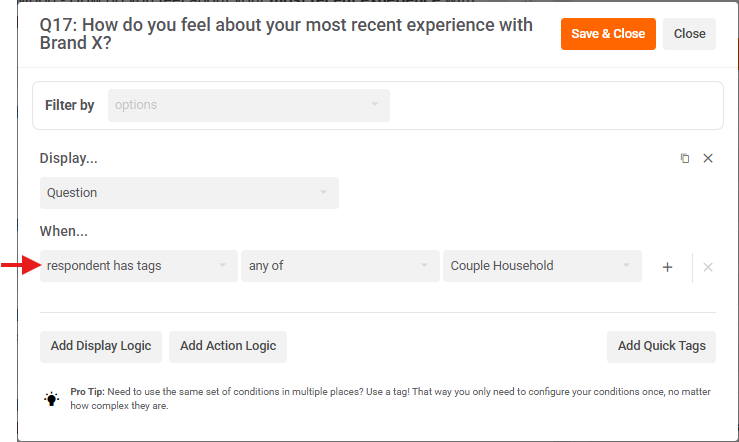
1: in your Survey Logic (e.g. Display... Question; When... respondent has tags: Couple Household).
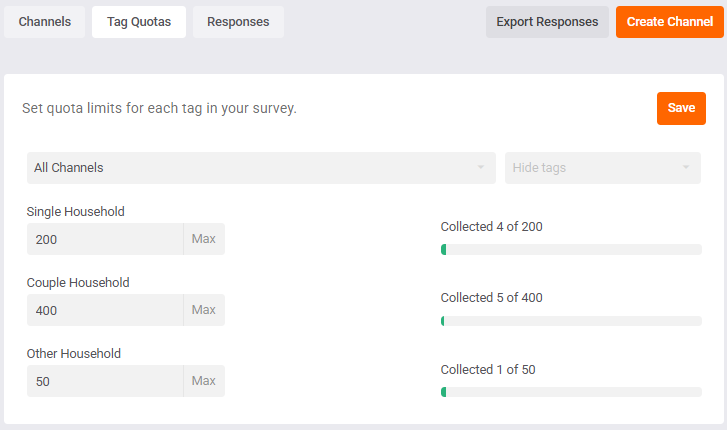
2: as a Tag Quota in the Capture tab.
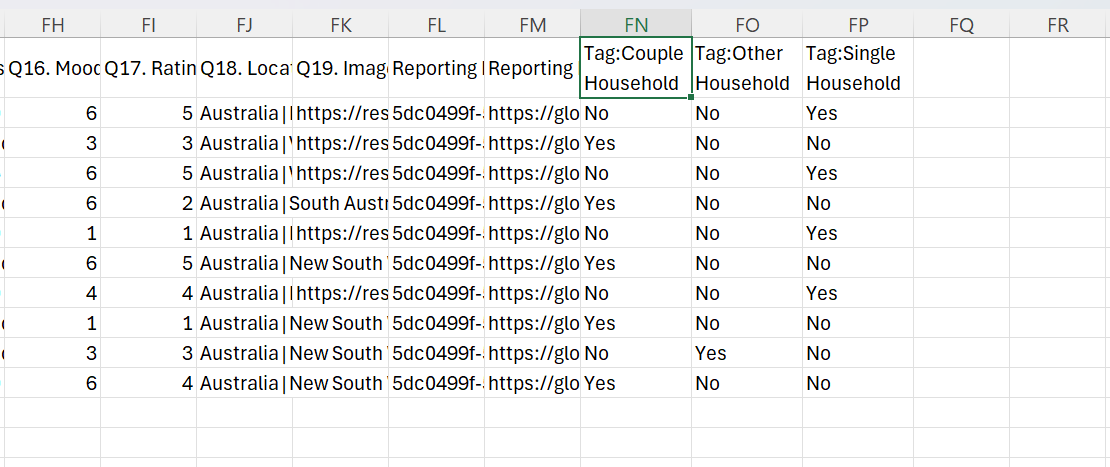
3: to Filter responses in the response exports.
Tags will appear in alphabetical order at the furthest right columns, after all your questions, with 1 column per tag, and "Yes" if they qualify, and "No" if they don't qualify for that tag.
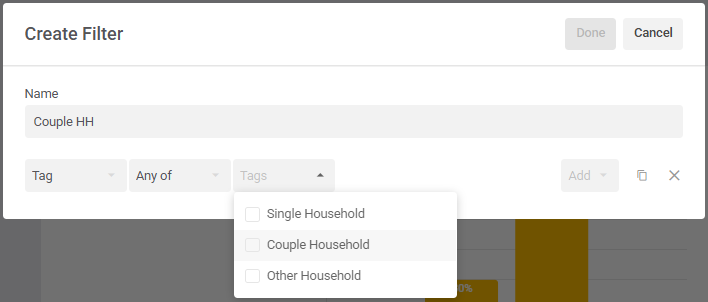
4: to Filter your charts and tables in analysis as cross filters (for crosstabs) or prefilters.
A: Create Filters from Tags
B: Add as Cross Filters (in table) or Prefilters (above chart)
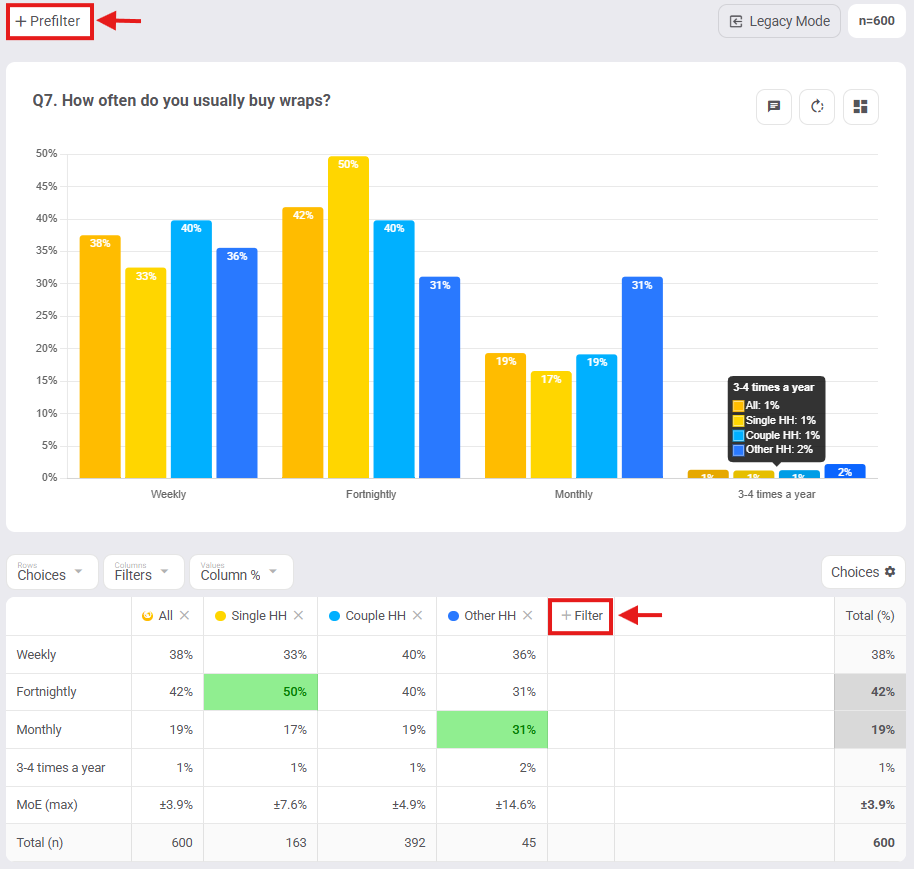
Tags are not charted in their own separate view in analysis but can be if you add them to a Hidden Variables question type in your survey.
Remove Tags
Finally, for whatever reason, you might want to remove tags from respondents, so this action allows you to untag respondents on the rare occasion that’s needed.
