
Exit the survey (Screen Outs).
Build
To screen respondents out that you don't want to qualify for your survey, use action logic: exit the survey. Respondents will exit your survey at the question you designate if they meet the criteria you set.
Note: as best practice and common courtesy, please exit respondents BEFORE the 10th question as any later is not fair to class as exits.

Exit logic is used in ~4 out of 5 surveys, so almost always used!
Capture
In the Integrated Consumer Panel channel, Exits are charged at:
- $1.00 AUD p/exit
- $0.70 USD p/exit
- $0.50 GBP p/exit
In the 'Universal Link' and 'Panel Partners' channels, Exits are charged at $0.00 p/exit
Exits consume 0 hosting credits.
Note that the Incidence Rate is calculated as Completes / (Completes + Exits)
Exit Redirects:
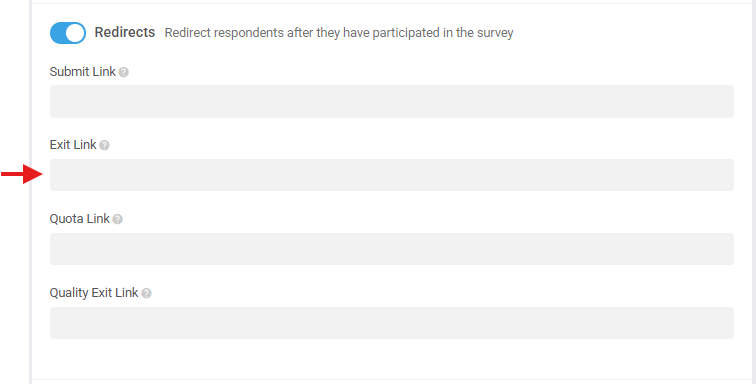
If you're using panel partners, either via 'Universal Link' or 'Panel Partners' channels, they'll have a specific redirect for exits, so make sure to add this in your channel's Advanced Options > Redirects > Exit Link field. You don't need to add redirect links if you're using Glow's 'Integrated Consumer Panel' channel as they're built in. Likewise, certain panels in the 'Panel Partners' channel will have no redirect fields available as they've been built in, so already added.
Analyse
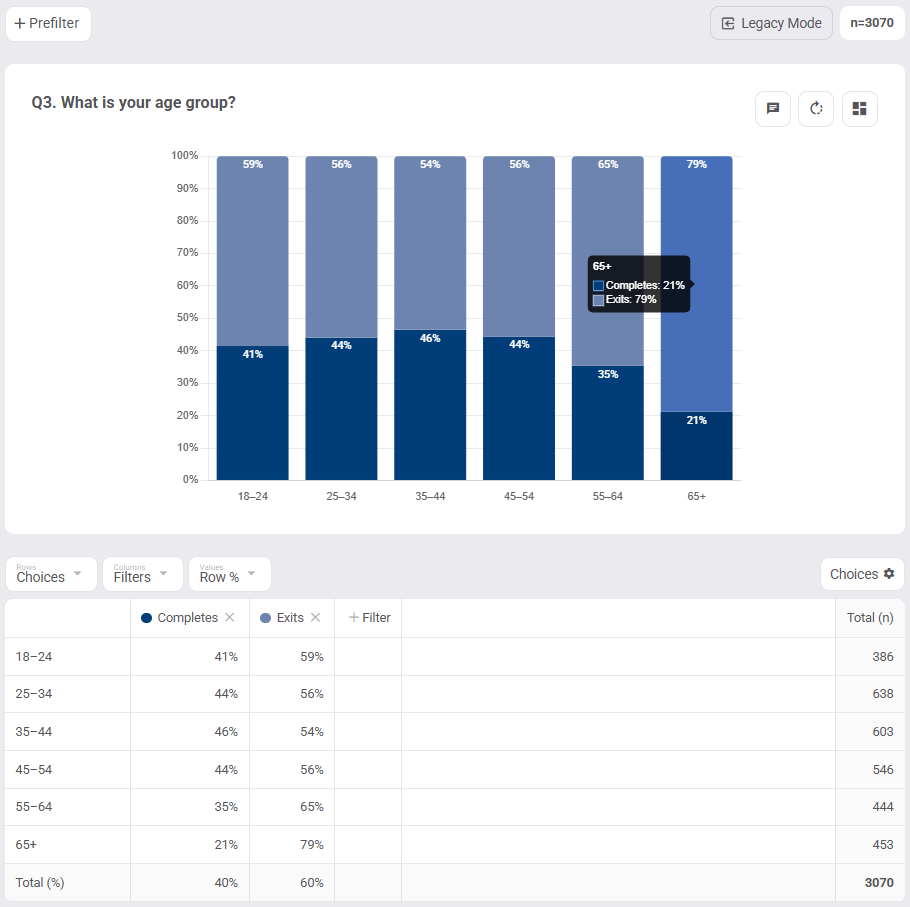
Exits are useful in analysis for Market Sizing studies, typically with Natrep on Entry, where you want to determine the incidence rate across different demographics like age, gender, location, etc., e.g. below, we can see over 40% of 18–54 years qualified for this particular study vs. 35% of 55–64 years and only 21% of 65+ years.
Exits are excluded from analysis by default.
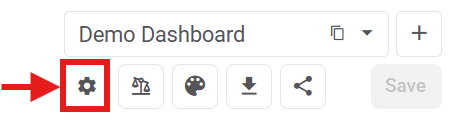
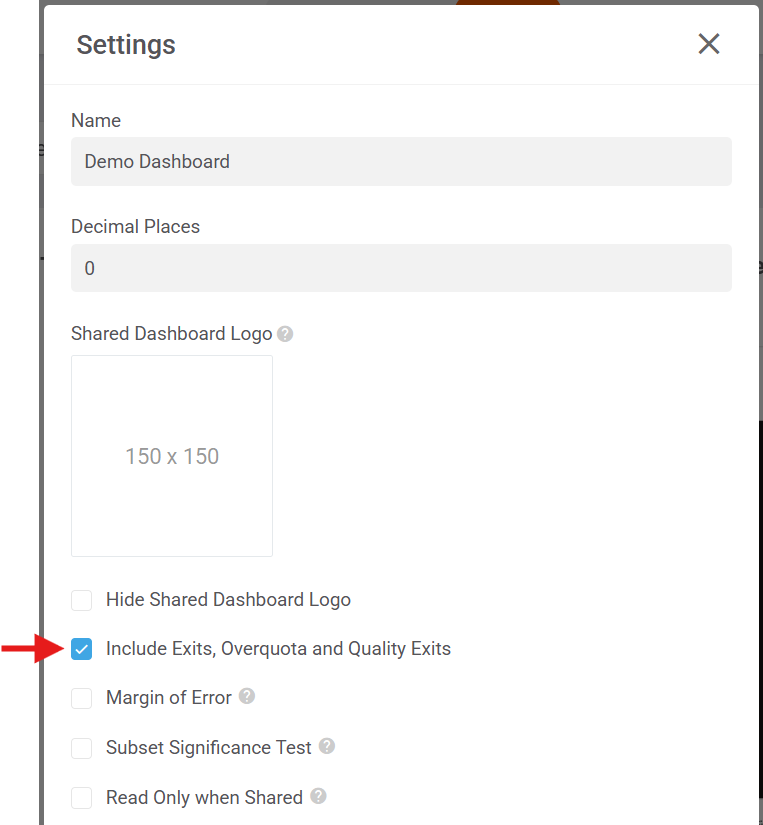
To include exits in your analysis, go to your dashboard settings, i.e. the cog icon at the top left in your dashboard bar, and tick "Include Exits, Overquota and Quality Exits".
To create a filter for Exits, go to your 'Filters' tab, hit 'Create Filter', and in your filter condition, pick 'Response Type: Exit'.
