Constant Sum.
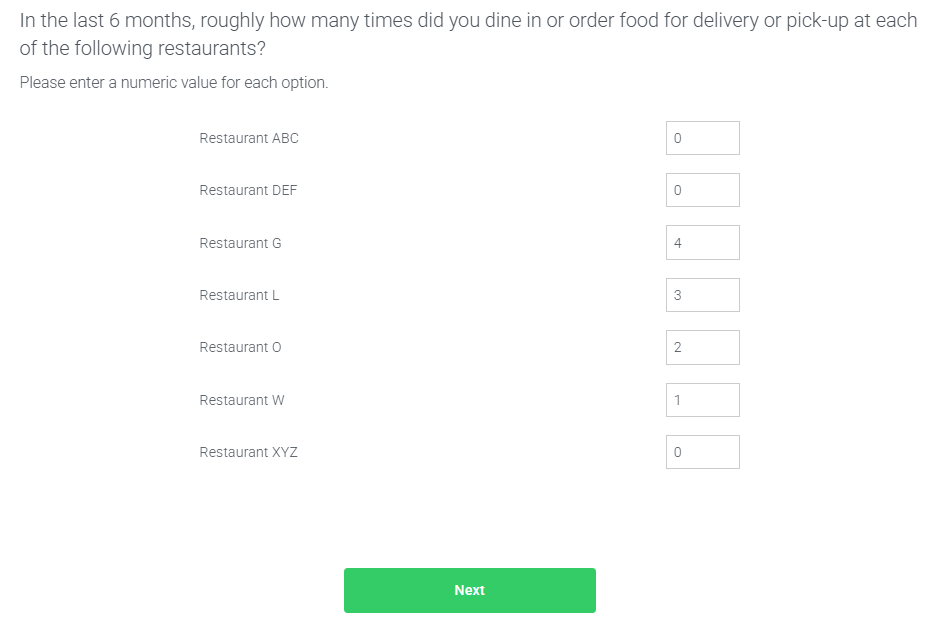
Constant Sum allows respondents to enter a numeric answer for each choice in your question.
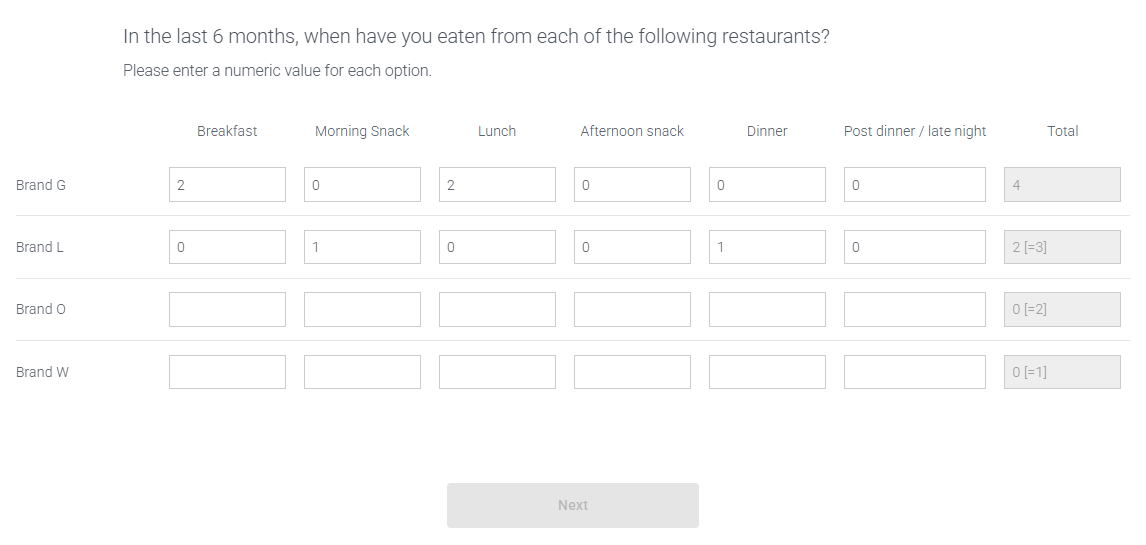
Constant Sum: Choice can be converted to a Constant Sum: Matrix, where respondents can assign a numeric answer to each choice (columns) for each statement (rows) in your question.
Build
Basic
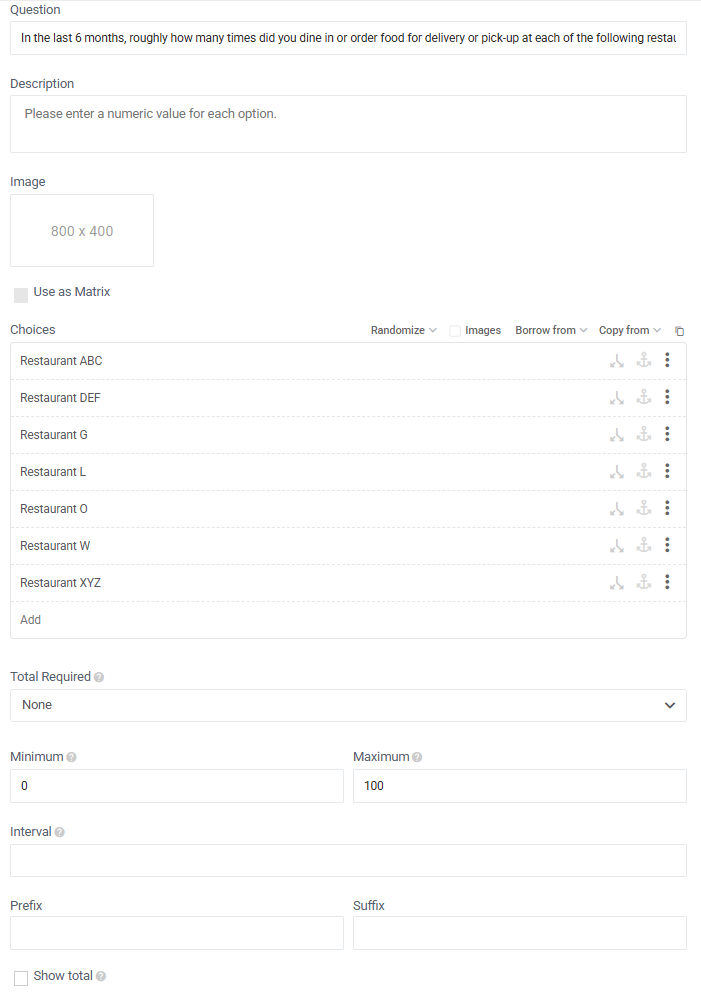
To create a Constant Sum Question...
- Go to the Build tab
- Click +Add Question/Section and pick Constant Sum
- Enter your question and choices.
- Click Save & Close
To convert to a Constant Sum: Matrix...
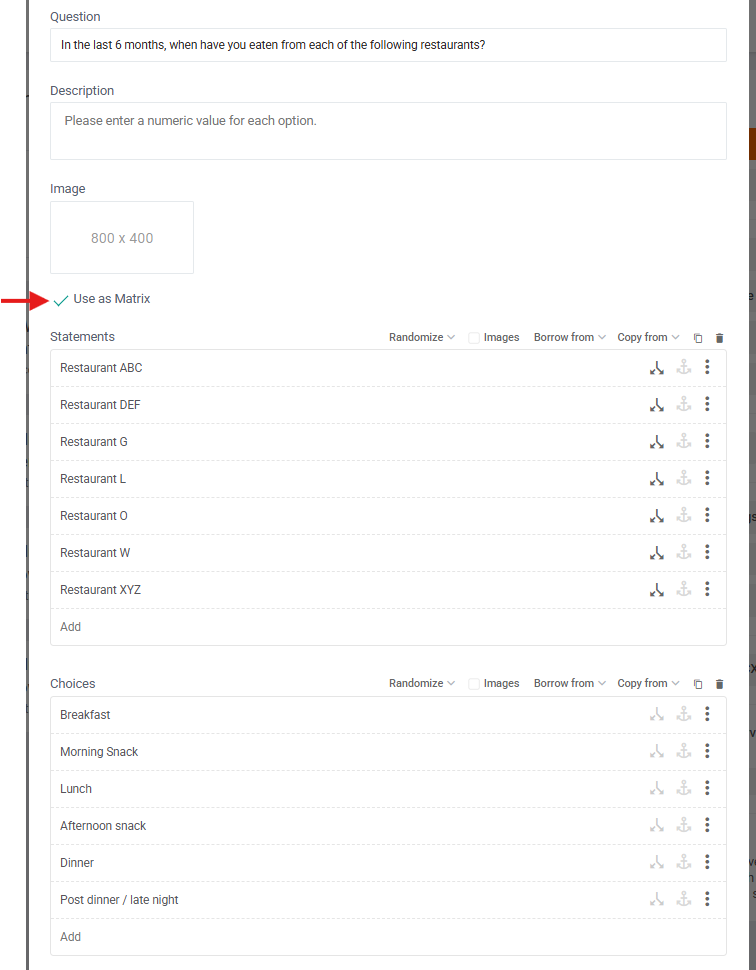
- Tick 'Use as Matrix'
- Enter your question, statements, and choices
- Click Save & Close
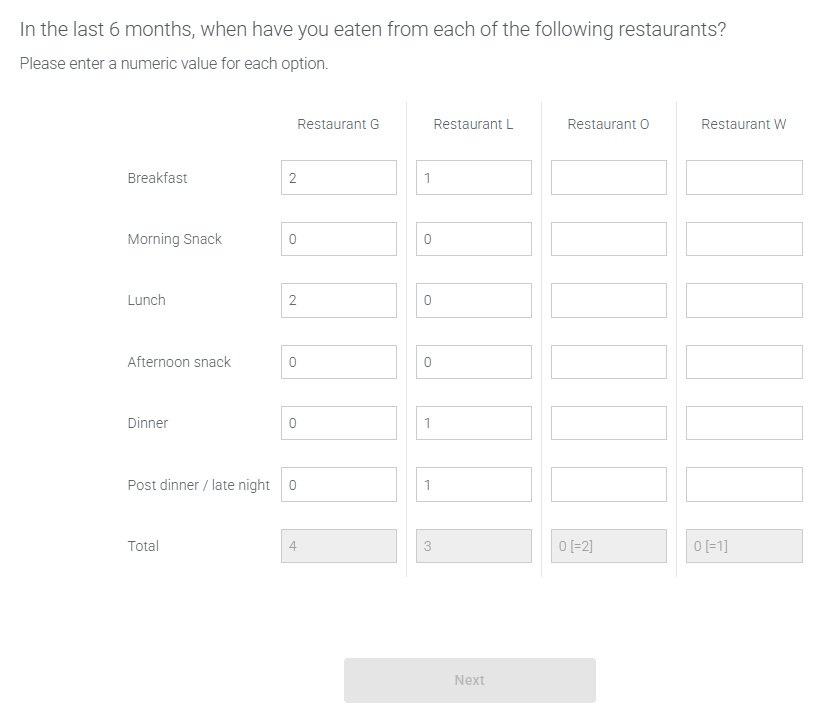
By default, your statements appear in the rows and choices in the columns, but you can tick 'Flip Table Axis' in your editor to invert that, i.e. statements in columns vs. choices in rows per below.

Advanced
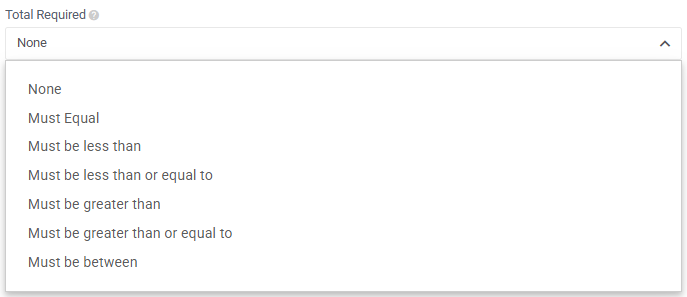
- Enter 'Total Required' if required
- default is set to 'None' but you can change that to equal, less, or greater than in the dropdown. 'Must Equal' is most common, e.g. 'Must Equal 100'.
- if Choice - choices must sum to the 'Total' value.
- if Matrix - choices must add up to the 'Total' in each statement.
- Static vs Dynamic total.
- input a number for a static total, e.g. 100

- input a {{ QX#N }} variable for a dynamic total. This inserts the numeric answer from a prior constant sum question (or text question with numeric validation)

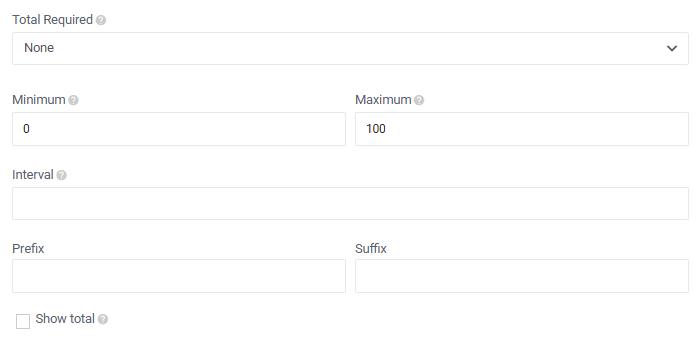
- Enter Range: Minimum and Maximum
- default is set from '0' to '100' but you can change that to anything else you want.
- Set Interval
- leave blank to allow decimals
- enter 1 to permit only whole numbers (no decimals)
- enter 10 to allow only 10, 20, 30, etc. If respondents input 26, it will round up to 30.
- or use any other interval you want.
- Add a 'Prefix' or 'Suffix' to each numeric field if you need it, e.g. '$' as prefix or '%' or 'p/month' as suffix
- Tick 'Show total' if you want respondents to be able to see the sum of their answers. This will show both:
- the current total and
- the required total (if any).
Display Logic vs. Borrow from
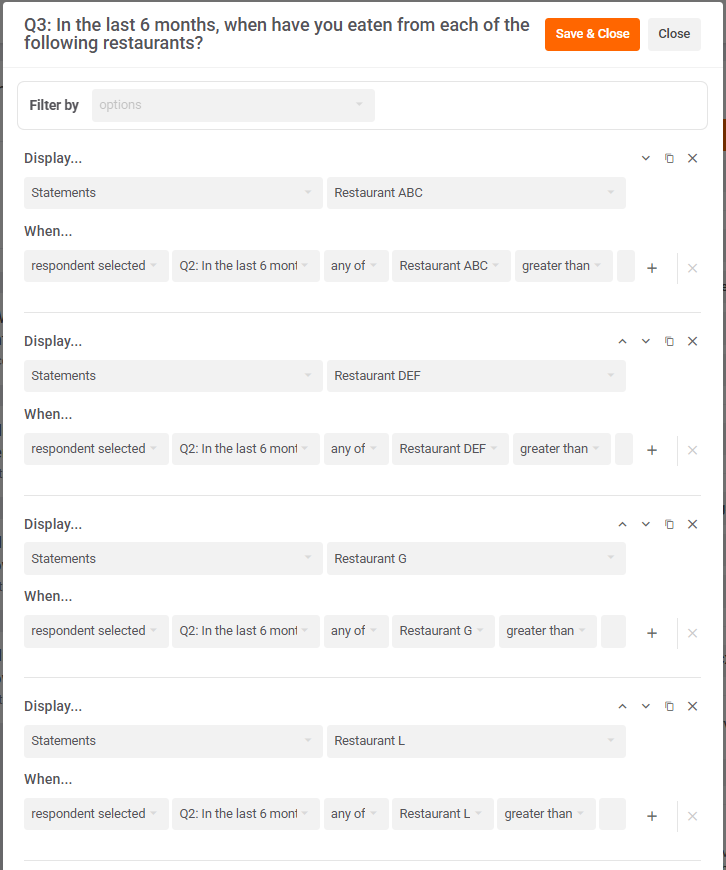
'Borrow from' can only be used to borrow from previous choice, matrix, or rank questions but can't be used to borrow from previous constant sum questions, which is a common use case! You can instead use 'Display Choice' or 'Display Statement' logic in your question's logic editor to do this. E.g. below we've only shown each Statement at Q3 if they input a number greater than 0 for the corresponding Choice at Q2.
Very Advanced
- Different & Dynamic 'Statement Totals'
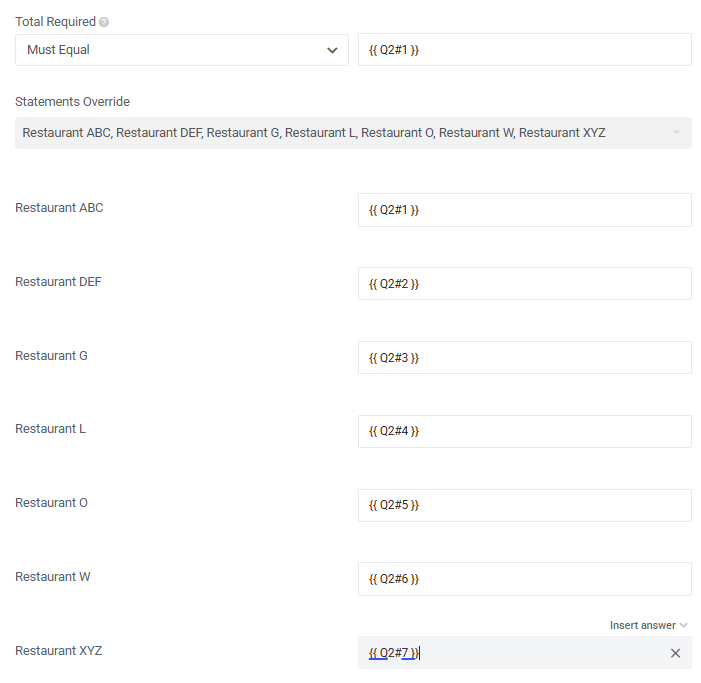
In the example below, each statement's totals at Q3 must equal the corresponding answers from the previous constant sum question at Q2.
Q2 Answers

Q3 Totals (far right column)

I.e.
- If Brand G = 4 at Q2, Total must equal 4 for Brand G at Q3.
- If Brand L = 3 at Q2, Total must equal 3 for Brand L at Q3.
- If Brand O = 2 at Q2, Total must equal 2 for Brand O at Q3.
- If Brand W = 1 at Q2, Total must equal 1 for Brand W at Q3.
How do we do this? (Note: Q3 must be a Constant Sum: Matrix)
- Click the 'Statements Override' dropdown (under 'Total Required') and click 'Select All'.
- Click the 'Insert answer' dropdown in each field and select a previous constant sum question. This will inject a dynamic variable that looks like this {{ QX#1 }} into your 'Statement Total' field.
- So {{ Q2#1 }} will inject the numeric answer from the 1st choice at Q2 as your required total for the 1st statement at Q3.
- Likewise {{ Q2#2 }} will inject the numeric answer from the 2nd choice at Q2.
- And so on {{ Q2#3 }} etc. for each of your statements at Q3.
- Click 'Save & Close'.
Responses
Below are the Response Exports for Constant Sum with:
- Numeric answers in cells.
- 1 row per respondent.
- 1 column per choice. So at Q2 (grey), 7 choices = 7 columns.
- 1 column per statement (if Matrix) and per choice. So at Q3 (blue), 7 statements x 6 choices = 42 columns.

Note that there are 3 answer types for constant sum:
- numbers greater or less than 0 (light purple)
- numbers equal to 0 (medium purple)
- blank cells (dark purple) - which means respondent didn't see that choice or statement.
Please note that Glow's analysis calculations always excludes both 0's and blanks by default and only analyses the numbers greater or less than 0.
However, sometimes you might want to include 0's (but still exclude blanks) in your analysis. Unfortunately, this is not yet possible to do in Glow's Analysis. E.g. In the data below, I want to excl. 0's at Q2 but want to incl. 0's at Q3 so that base numbers, avg at Q2, and sum of avgs at Q3 align.
You'll need to do that separately yourself (off platform) as I've done below in Excel in Rows 14 (Base incl. 0's), 17 (Avg incl. 0's), and 20 (Sum of Avgs incl. 0's).

To reiterate:
- Blanks should always be excluded from analysis calcs
- 0's should sometimes be included in analysis calcs but is currently always excluded in Glow's analysis.
- >0 or <0 is always included in analysis calcs.
Analyse
Constant Sum is the most complex question type to analyse as you have a minimum of 2 and a maximum of 5 dimensions of data.
- Numeric answers
- Choices
- Statements (if Matrix)
- Loops (if Looped)
- Filters (if Crosstab)
Click the link above or here for full detail on how to analyse constant sum.
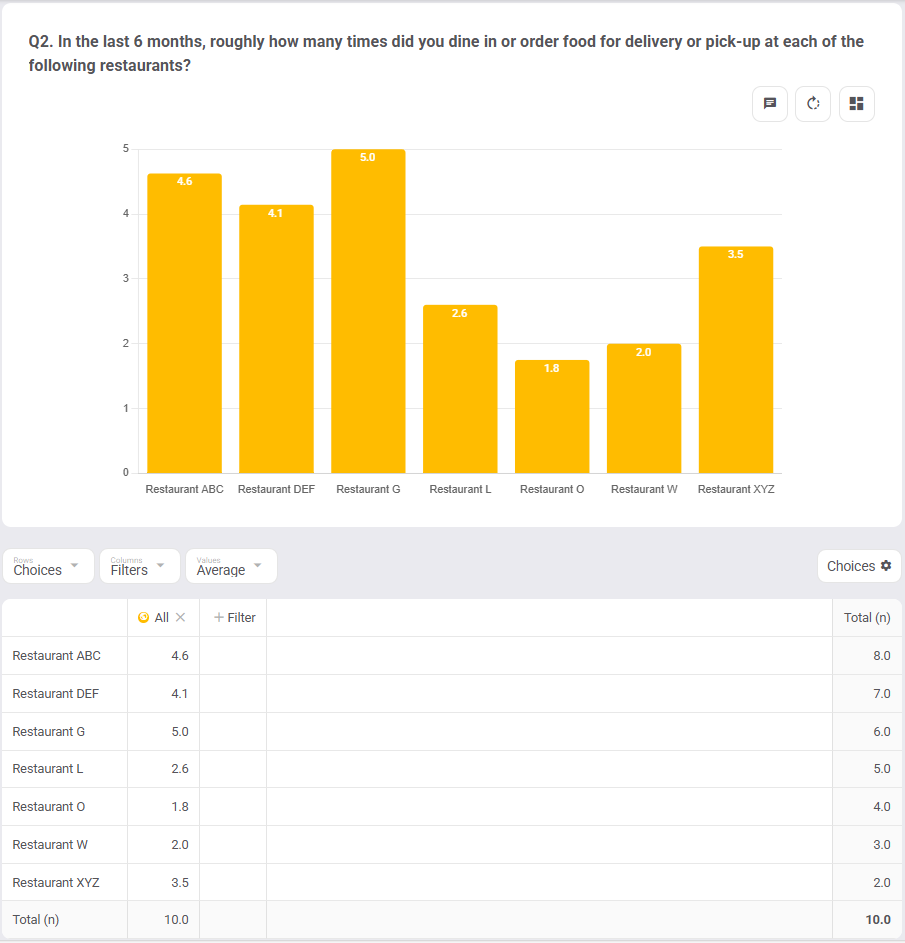
Below however, is the simplest Constant Sum: Choice view. We can see that at Q2, of the respondents who visited each restaurant more than 0 times in the last 6 months:
- Restaurant ABC was visited 4.6 times on average (n=8)
- Restaurant G was visited 5.0 average (n=6)
- Etc.