Matrix Question.
The Matrix question type allows respondents to select one or more choices across multiple statements.
- Statements are like mini questions and appear in the rows by default (but can be flipped to columns)
- Choices are the answers to each of your mini questions and appear in the columns (but can be transposed to rows).
It's:
- the 2nd most popular question type
- the most powerful question type.
To create a matrix question:
- Go to the Build tab
- Click +Add Question/Section and choose 'Matrix'
- Enter the question, statements, and choices and click 'Save & Close'.
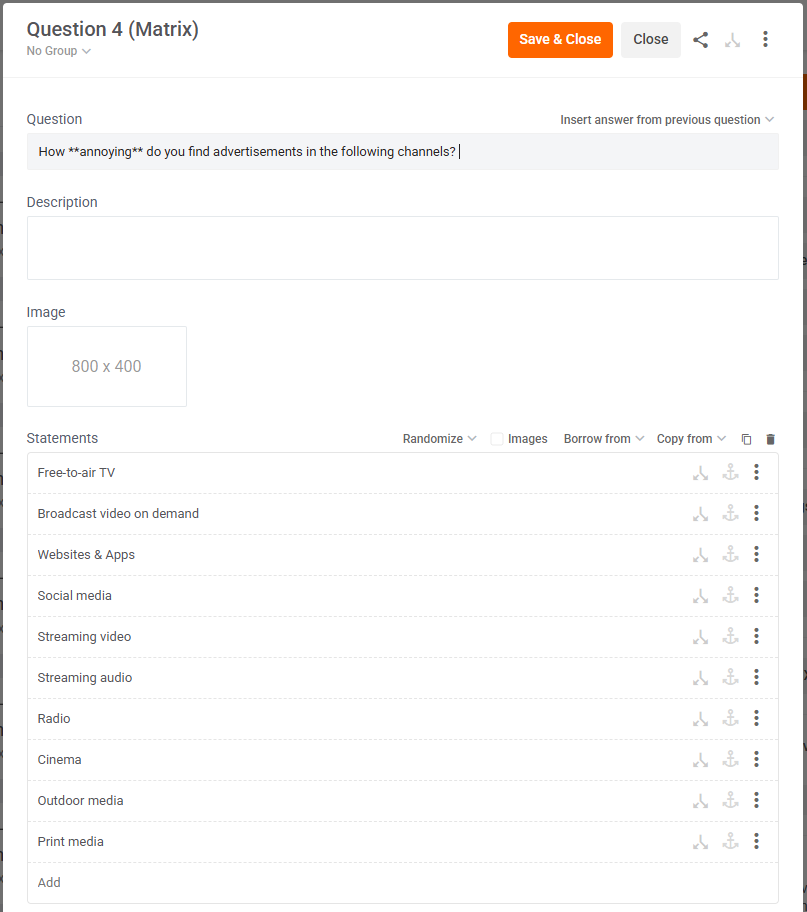
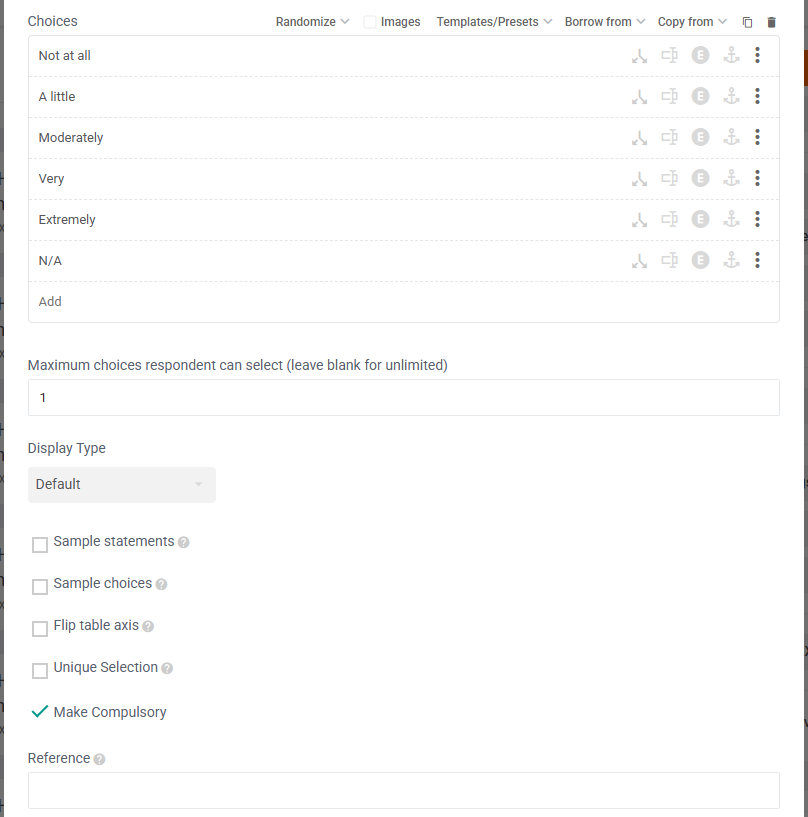
Matrix Editor
Within Matrix questions, you can also:
- Randomise statements
- Add statement images
- Borrow statements from options in previous questions
- Group statements under headers
- Use preset choice templates, e.g.
- Very dissatisfied (1) to Very satisfied (5) or
- Poor (1) to Excellent (7)
- Allow single choice (default) or multiple choices per statement in "Maximum choices respondent can select" field.
- Change display type, i.e.:
- Default (grid,)
- can Flip table axis / transpose grid (rows <> columns)
- can capture text in a choice
- Dropdown,
- Scale,
- create an independent choice that sit outside of the scale, e.g. don't know or n/a.
- Carousel,
- Drag & drop
- Default (grid,)
- Sample statements - randomly display x of y statements
- Use 'Unique Selection' to force 1 unique choice p/statement, great for Max Diff Variation.
On top of many of the same functions from the Choice Editor.
Matrix Preview
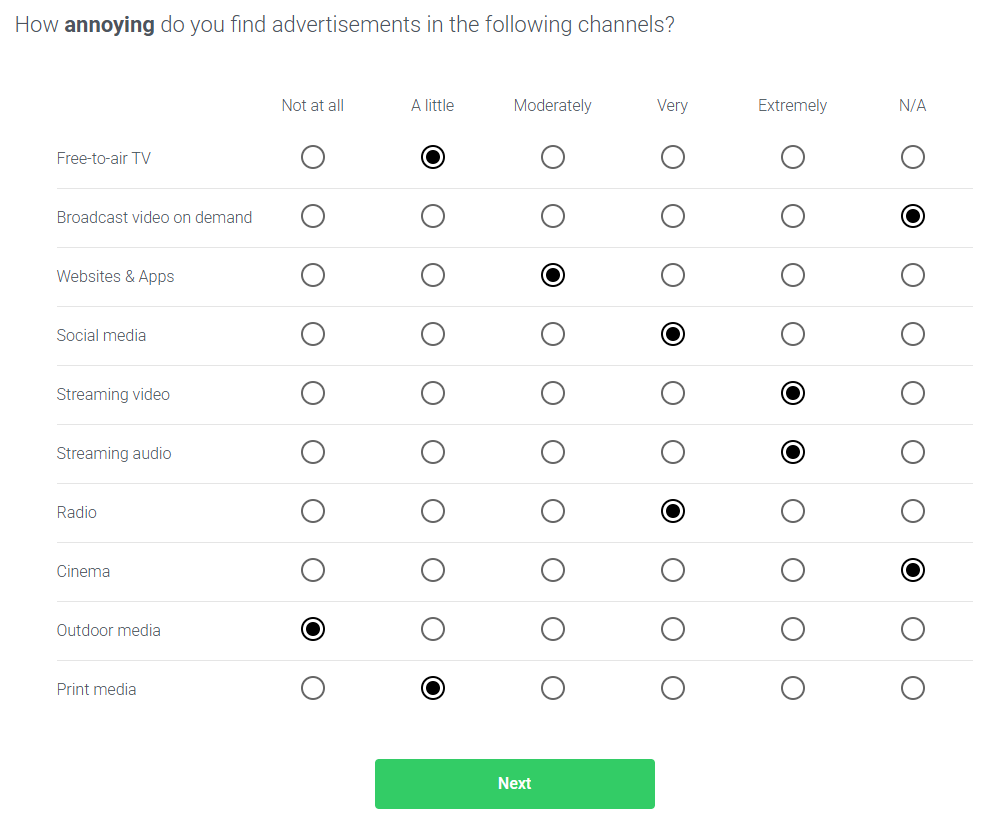
1A: Matrix Grid - Default
Statements in the rows and choices in the columns.
1B: Matrix Grid - Flipped
Statements in columns and choices in rows
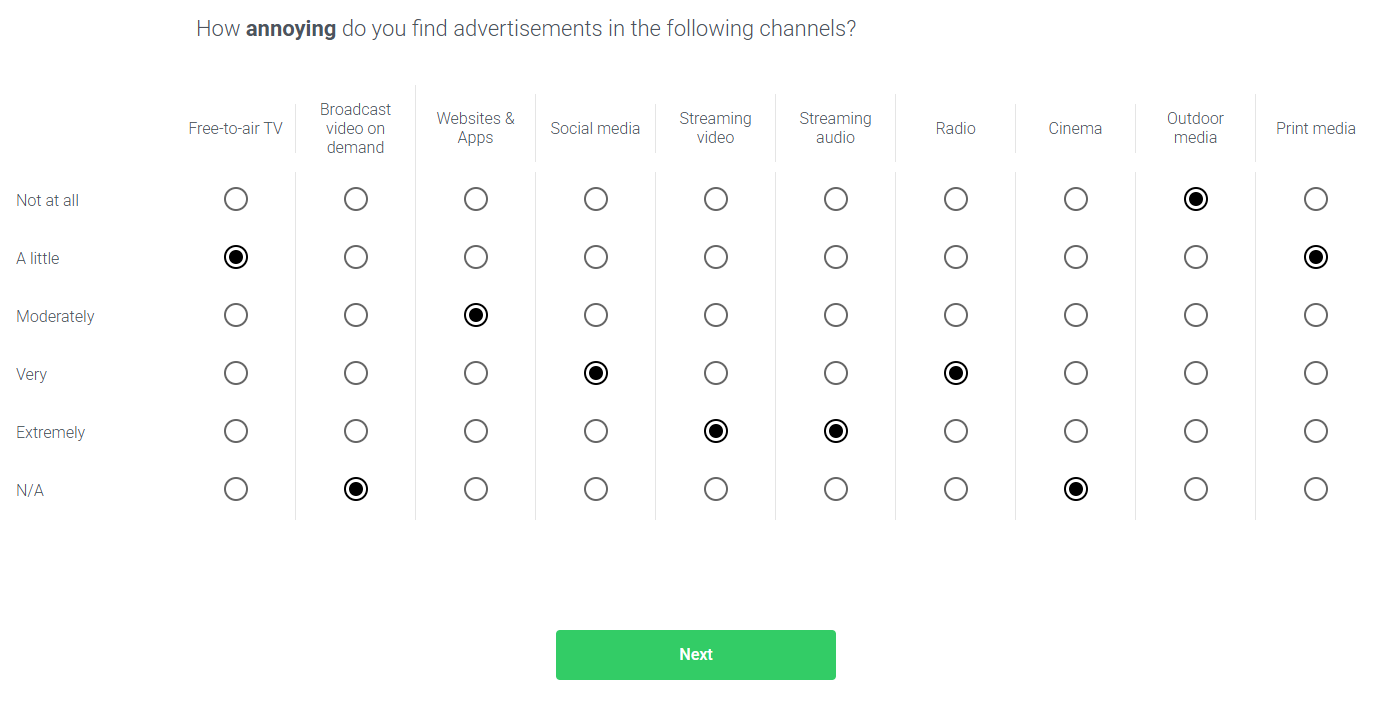
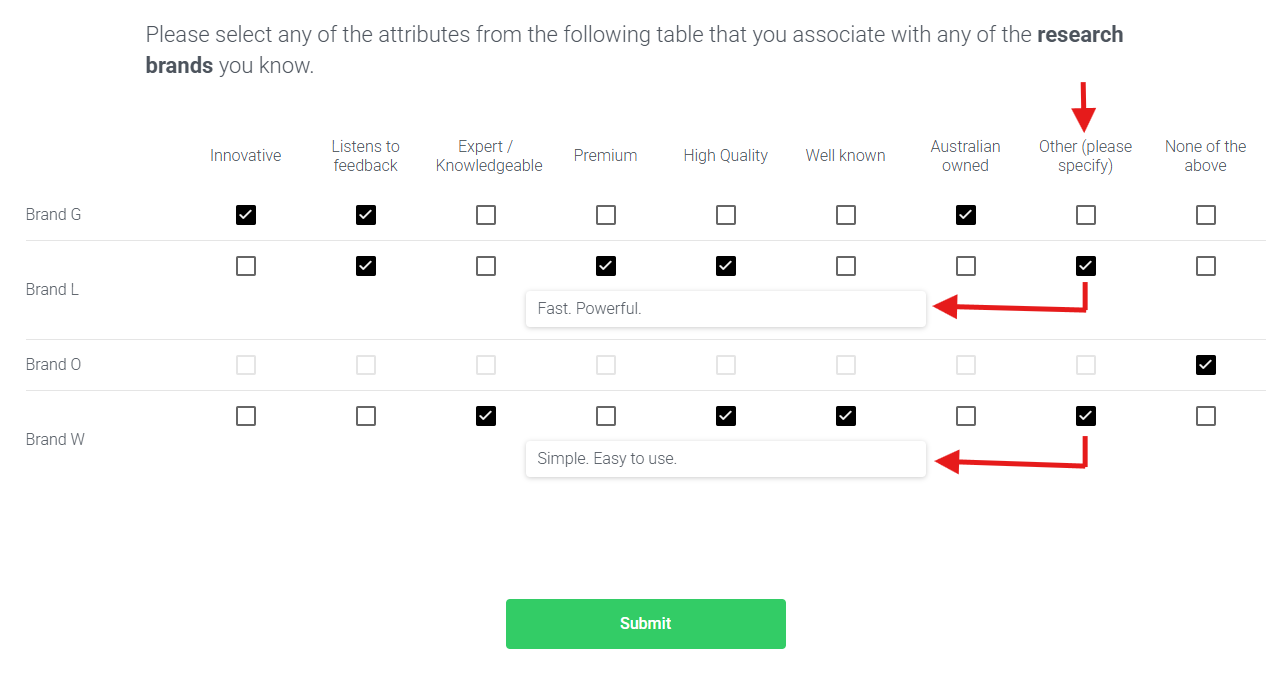
1C: Matrix Grid - Text Capture & Multiple Choice
If "text capture" is enabled in your Matrix Editor, e.g. for the "Other (please specify)" choice, then in your Matrix Preview, respondents who choose the "Other (please specify)" choice for any of the statements can input text into a blank field for that choice in that statement.
If multiple choices are allowed in your Matrix Editor, i.e. "blank" in the "Maximum choices respondent can select" field, then respondents can select multiple choices per statement.
You can even have an exclusive choice e.g. "None of the above".
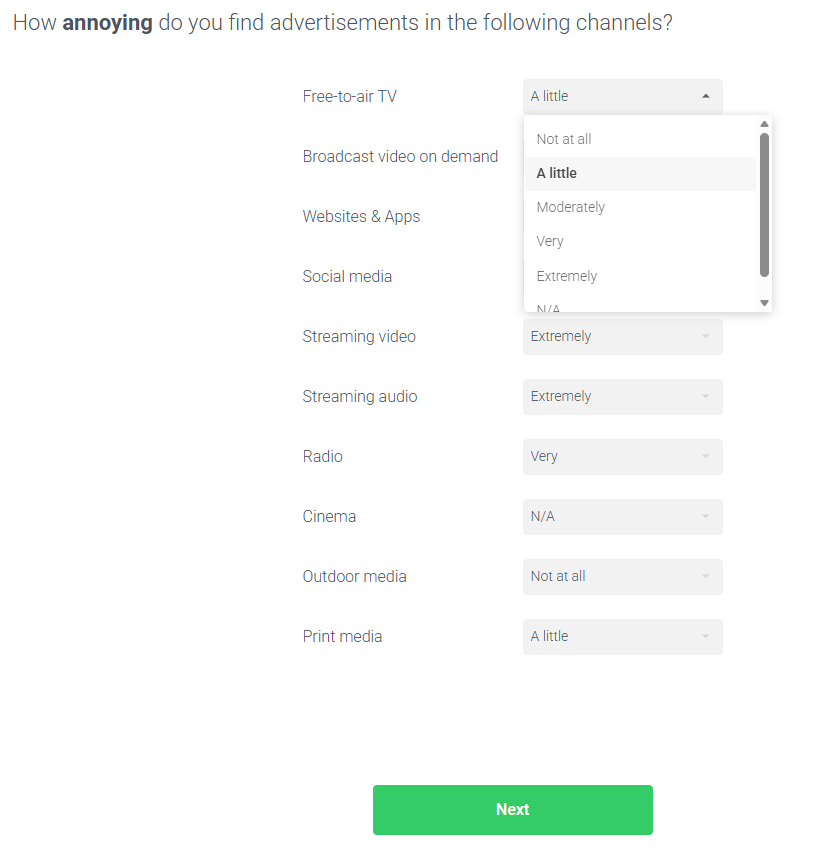
2: Matrix Dropdown
Statements in rows and choices in dropdowns.
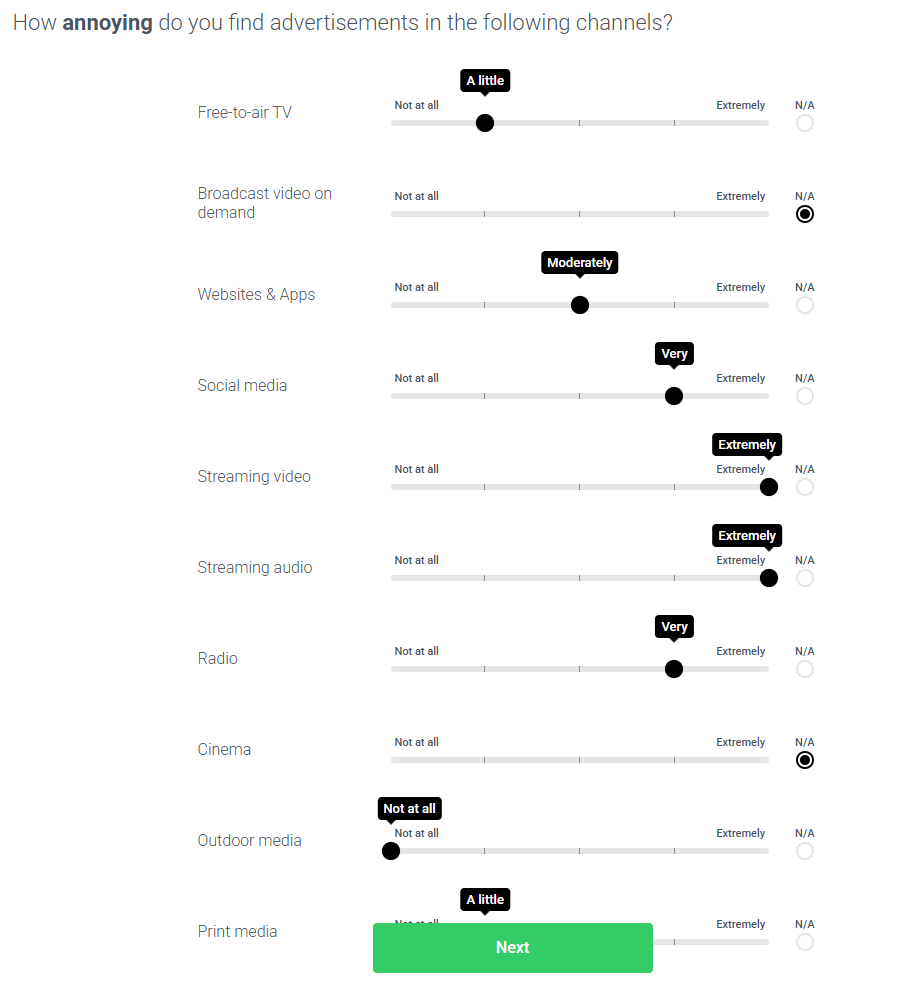
3: Matrix Scales
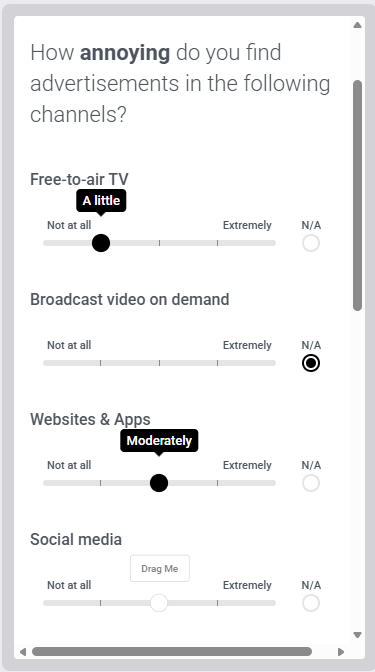
Statements in rows and choices on horizontal scales.
You can have an independent choice (e.g. N/A) that sits outside of the scale.
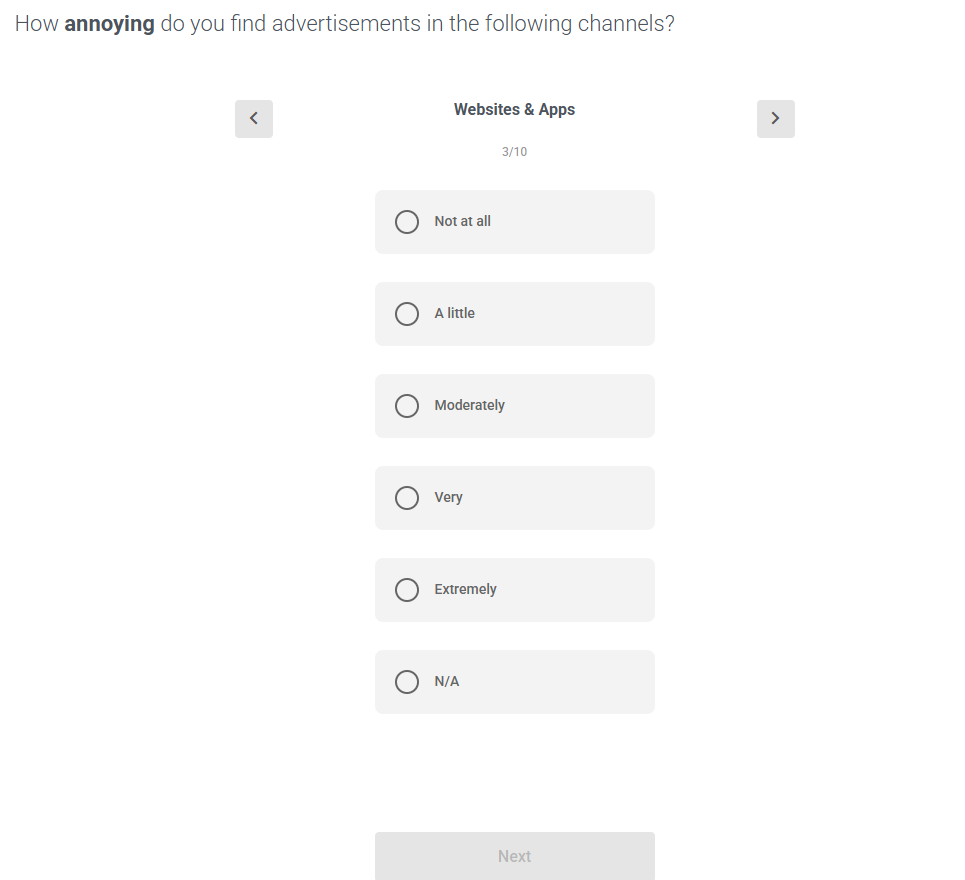
4: Matrix Carousel
- Statements rotate in the carousel at the top
- Choices are listed vertically in a single column below each statement.
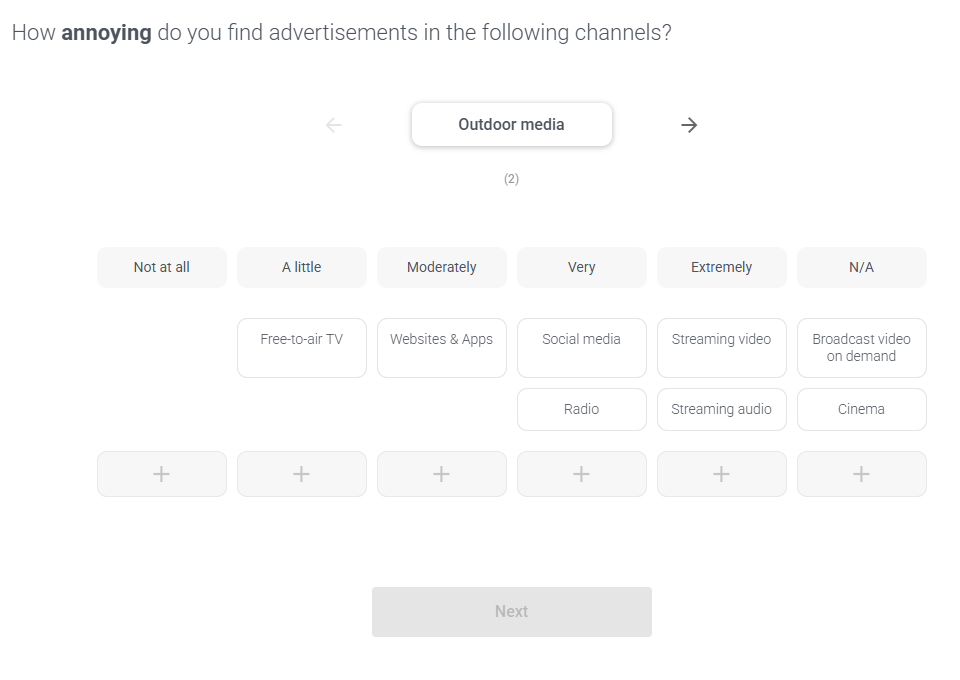
5: Matrix Drag & Drop
- Statements are displayed 1 at a time and can be dragged OR added from the carousel at the top into the choice buckets below.
- Choices buckets are presented horizontally below each statement.
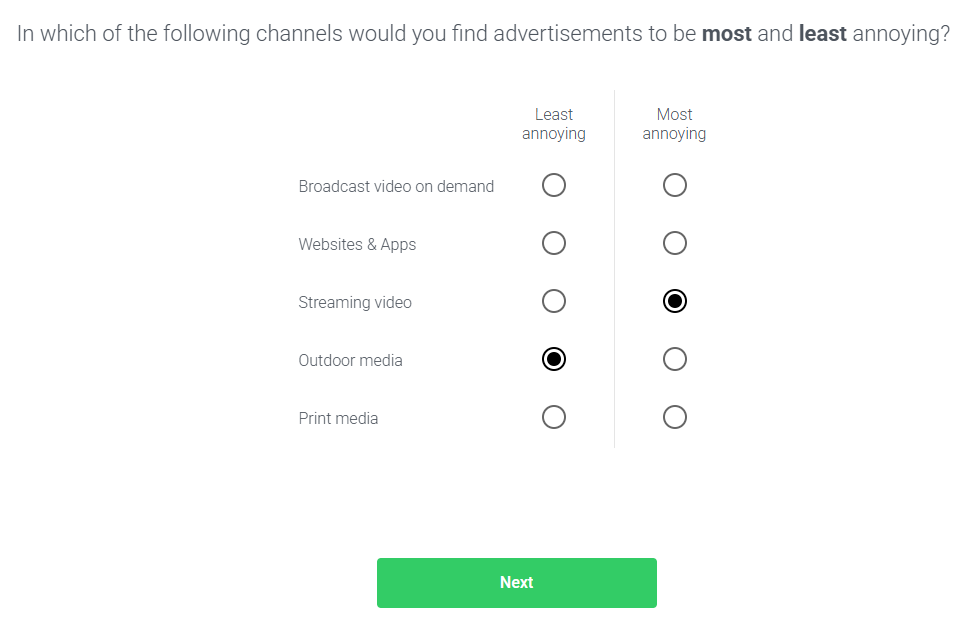
6: Matrix Max Diff
This is somewhat advanced but just requires 5 elements:
- "Least xxx" and "Most xxx" in the Statements
- Attributes (in this case, the 10 channels) in the Choices
- Sample choices = 5 (out of 10)
- Flip table axis
- Unique Selection
This is covered in more detail in this Help Article: Matrix MaxDiff Variation
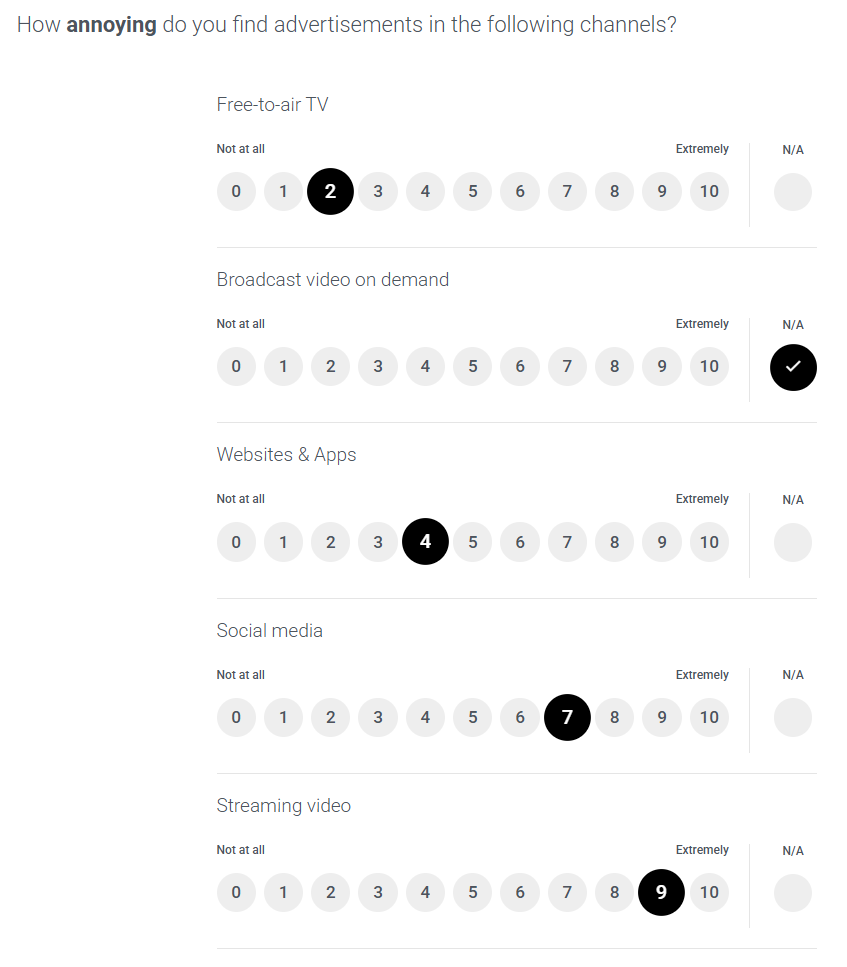
7: Matrix Score
Great for NPS type Matrix questions (e.g. likelihood to recommend).
This template is only available in the "Score > Matrix" Question type
8: Matrix Mobile View
All of the above can be viewed on mobile without any issues.
All questions in Glow are mobile compatible.
Matrix Analysis
Matrix is the most complex question to analyse as there's 2 dimensions of data:
- Statements
- Choices
But it's still possible to cut by a 3rd dimension:
- Filters
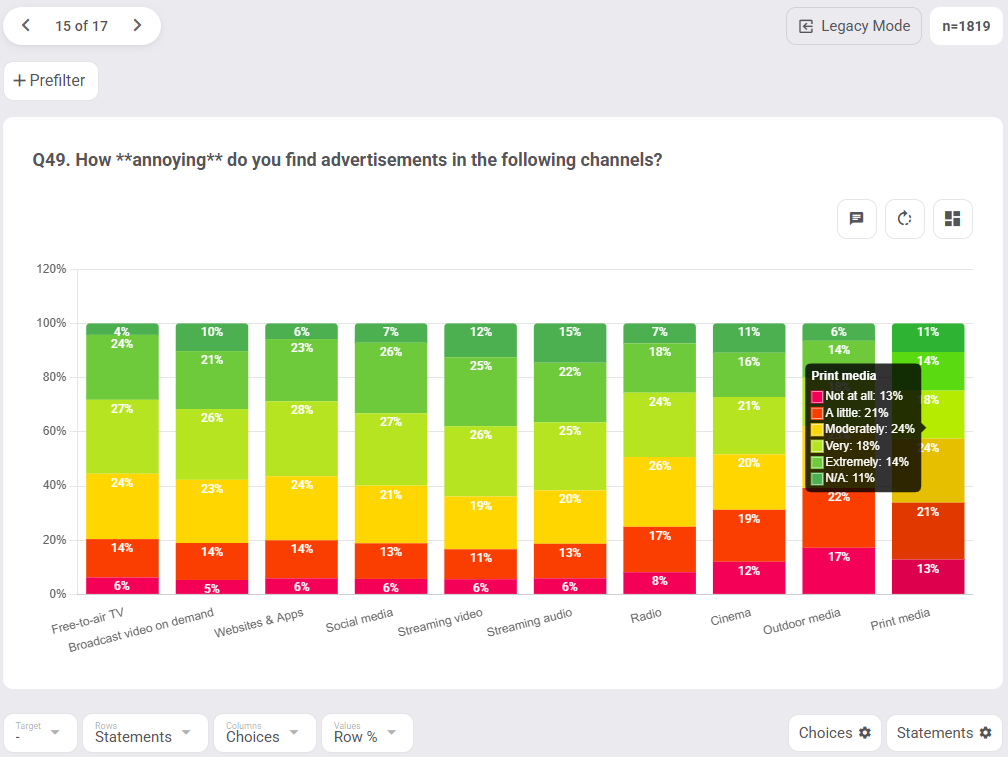
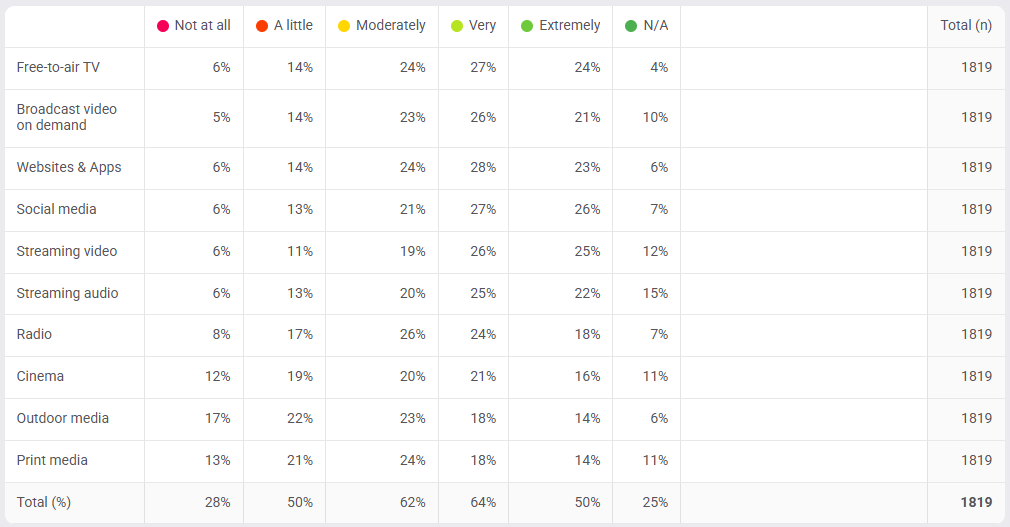
1: Matrix Default (2 dimensions)
- Chart: Statement in Labels, Choices in Bars & Legend.
- Table: Statements in Rows, Choices in Columns.
2: Matrix Crosstab (3 dimensions)
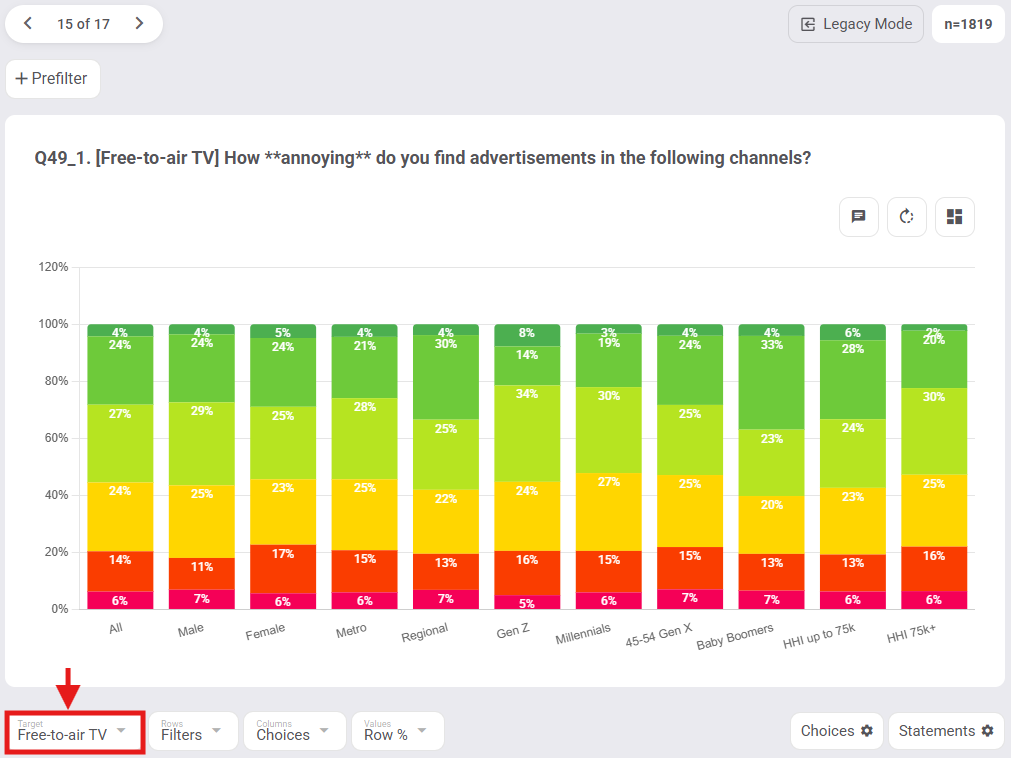
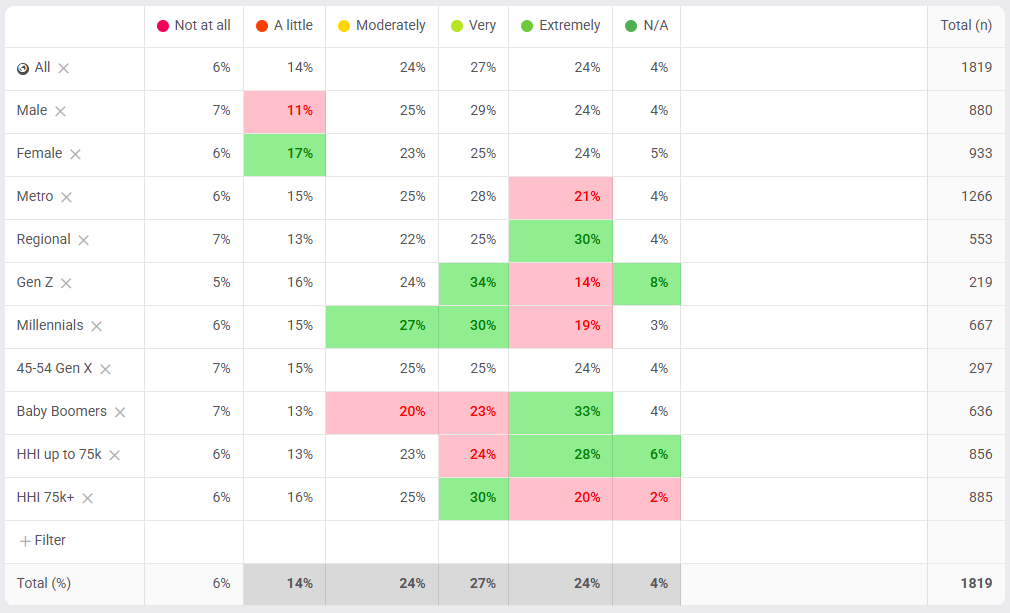
Below, we've targeted the "Free-to-air TV" statement and cut it by our gender, region, generation, and household income filters.
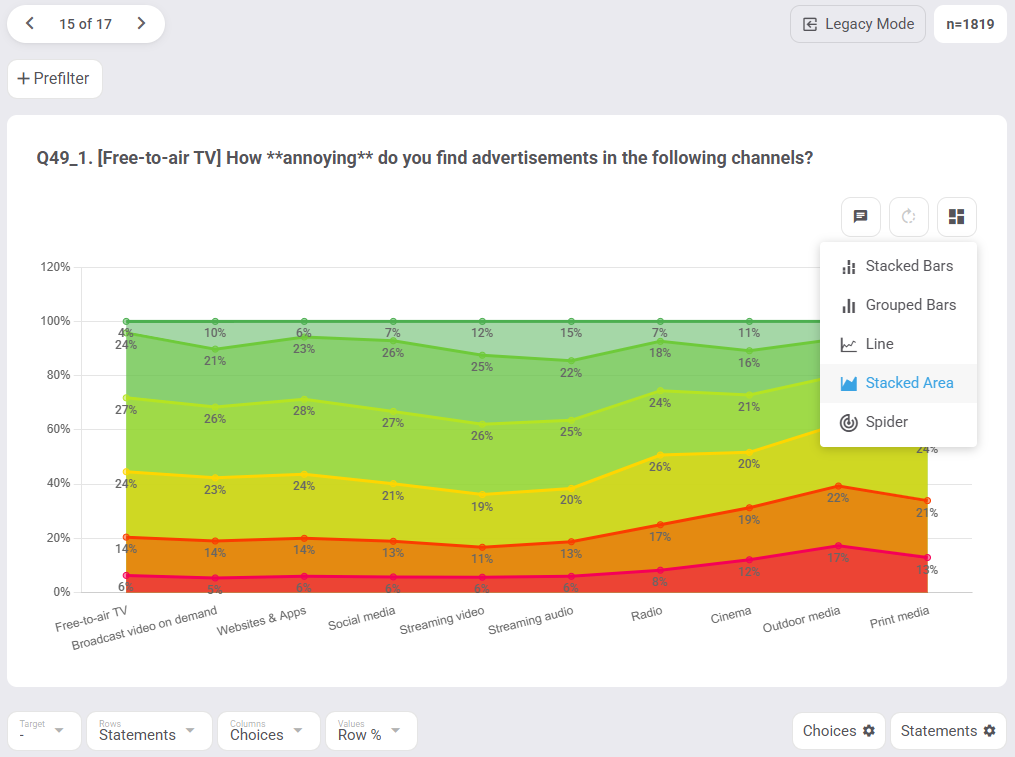
3: Chart Types - All chart types are available for Matrix Questions, whether stacked bars, grouped bars, line, stacked area, or spider charts. E.g. we can change Matrix from Stacked Bars above (default) to a Stacked Area chart below.
4: Score & Average in Matrix - your choices can be boiled down to a single central value per statement, i.e. Averages.

5: Merge, Hide, Exclude, & Reorder Matrix (Configure Options)
Your choice set can be simplified, e.g. from 6 choices to just 3:
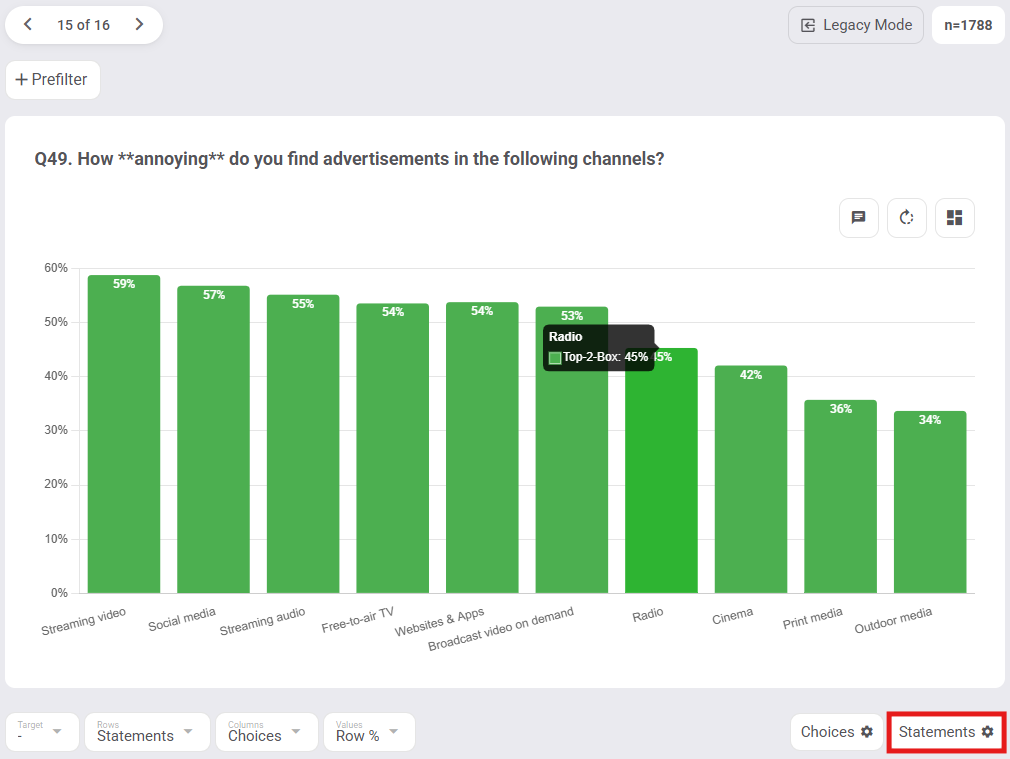
- "Very" and "Extremely" can be merged into "Top-2-Box"
- "Not at all" and "A little" can be merged into "Bottom-2-Box"
- "I am not sure" can be excluded (removes choice and recalculates percentages)
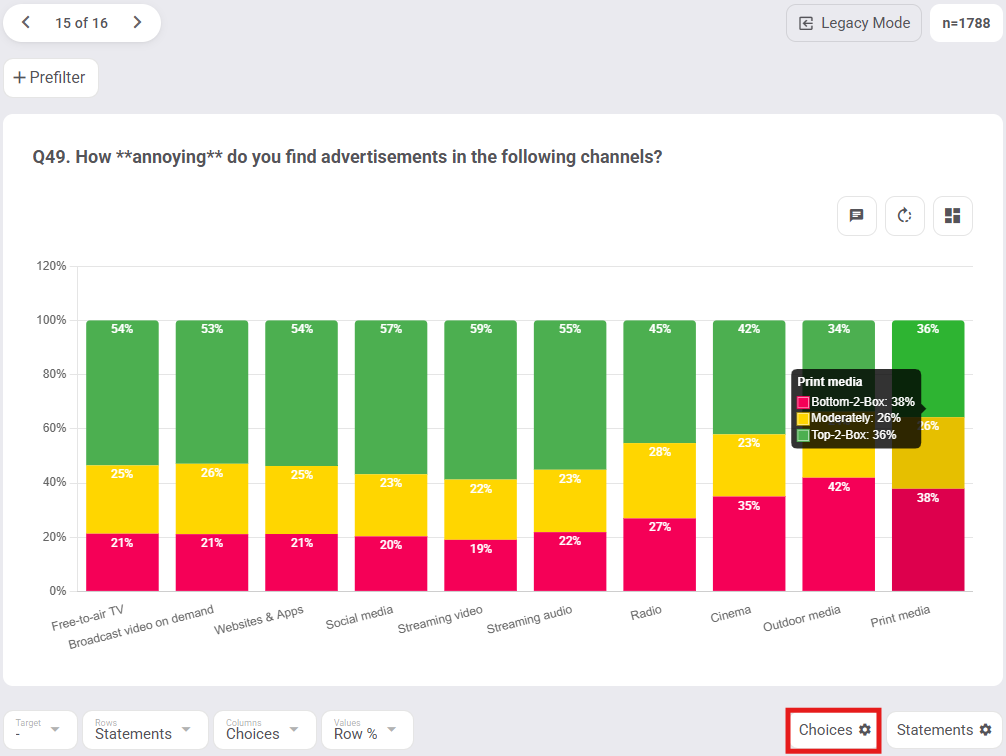
- "Bottom-2-Box" and "Moderately" can both be hidden to boil your data down from 3 variables to just a single metric: "Top-2-Box"
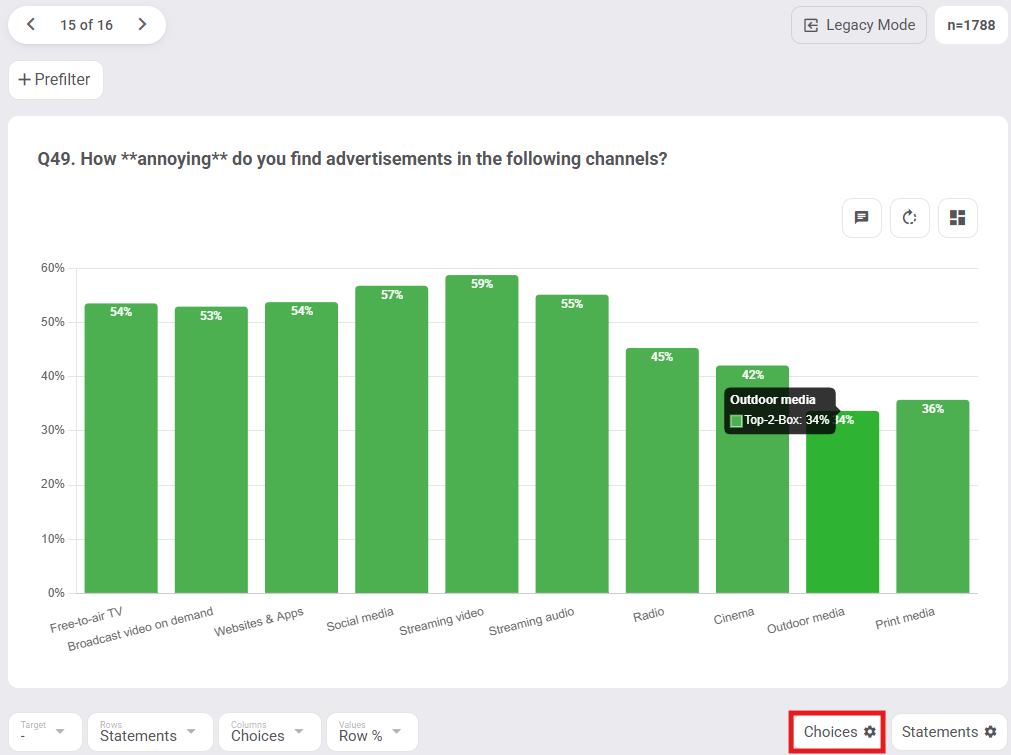
- Statements can be reordered from highest to lowest within the Statements config.